Choose a different device or app
Mac
Outlook on a Mac
Use these steps for the current Outlook app on your Apple computer.
Step by step
Follow these steps
Open Outlook’s settings
Open Outlook. Click Outlook in the menu at the top of your screen, then Settings.
Add an account
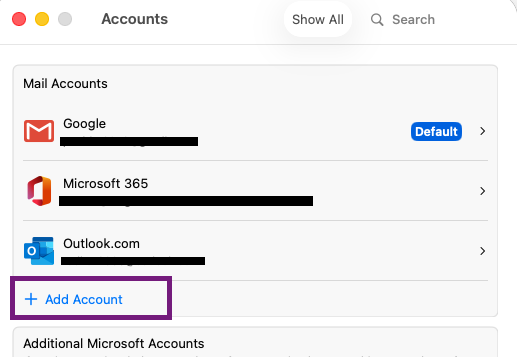
Click Accounts, then + Add Account.
Enter your email address
Type the full business email address we gave you. Click Continue.
Choose IMAP if asked
If Outlook asks for an account type, choose IMAP. Do not choose Microsoft 365 or Exchange for this email account.
Enter your connection details if asked
Use fusion.mxrouting.net for both incoming and outgoing mail. Incoming uses port 993 with SSL/TLS. Outgoing uses port 465 with SSL/TLS.
fusion.mxrouting.net993465SSL/TLSEnter your email login
Use your full email address and email password in both the incoming and outgoing login boxes.
Finish and try your email
Follow the remaining prompts and click Done. Send an email to another account you can open, then reply from that account.
Email settings to copy
Use these exact details
Keep this open while you fill in your email app. Select any value yourself if copying does not work.
fusion.mxrouting.net993SSL/TLS465https://fusion.mxrouting.net/roundcube/- Username
- Your complete email address
- Password
- Your email password
- Outgoing sign-in
- Required
Do not enter or save a password on this guide website.
Helpful notes
Keep in mind
Legacy interface
If Accounts opens under Personal Settings with a small + menu, you are in the legacy interface. Microsoft’s source below has a separate Legacy Outlook tab.
No calendar or contacts appeared
IMAP connects email. Calendar and contact synchronization require separate configuration; adding this mailbox does not turn it into an Exchange account.
Microsoft cloud synchronization
Outlook can synchronize a copy of your IMAP mail with Microsoft’s cloud. Review the account-sync prompt and Microsoft’s explanation below before continuing.
About this guide
Version: Current Outlook for Mac · Microsoft 365 / 2024
Documentation checked: September 18, 2026
Method: Official documentation reviewed
Sources